
The AI Toolbox is Helen Keller's browser-based application that uses artificial intelligence to transcribe audio recordings and translate documents. It is built for M&E specialists and program staff who work with qualitative data — interviews, focus group discussions, and field reports — across Helen Keller's country programs and multiple languages.
The toolbox currently offers two services:
| Service | What It Does | Status |
|---|---|---|
| Audio Analysis | Transcribes audio files (KII, FGD, IDI) and optionally translates the resulting text. | Stable |
| Document Translation | Translates uploaded documents (PDF, DOCX, TXT) between supported languages. | Beta |
When you first open the AI Toolbox, you will see the main screen with the following areas:
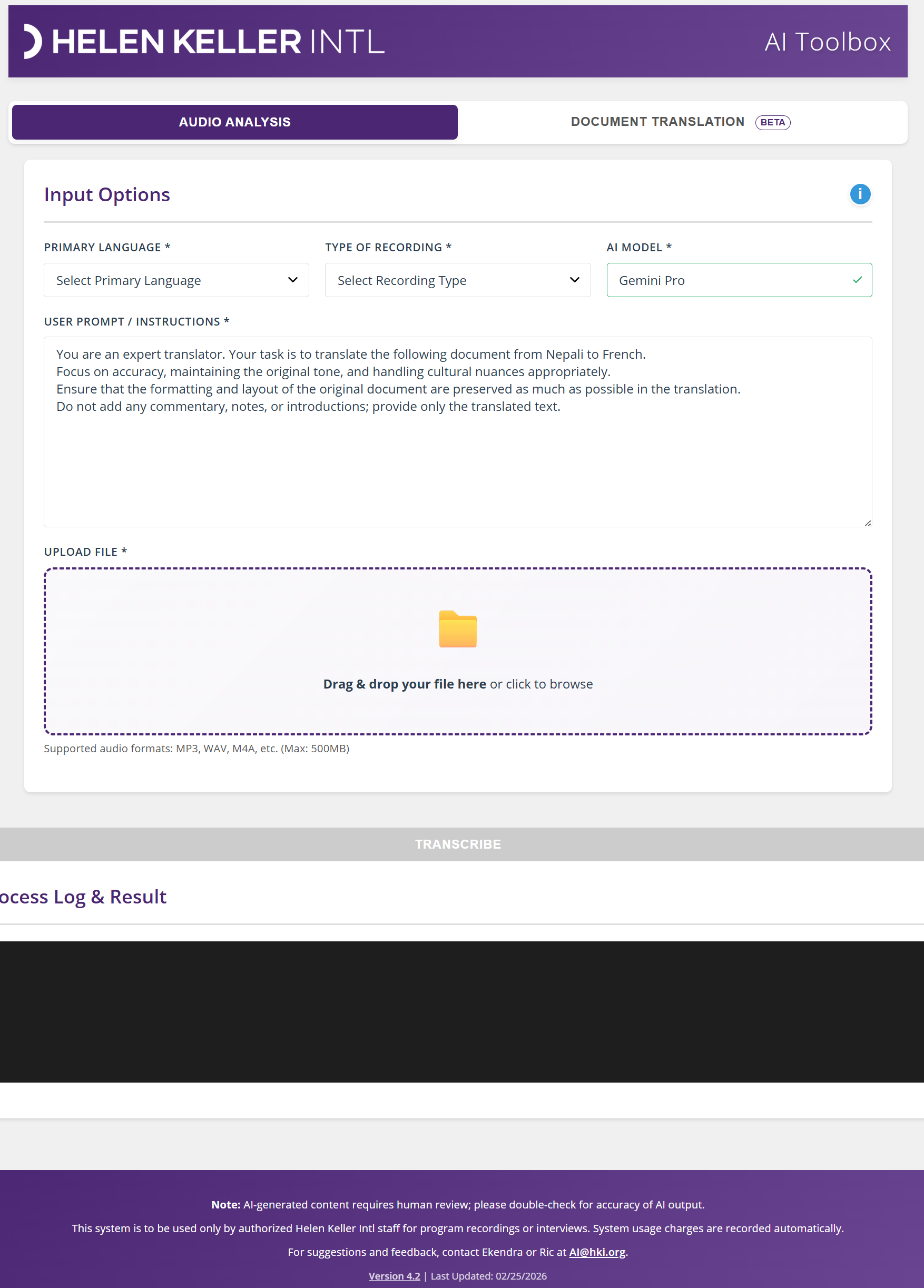
Figure 1: Full AI Toolbox interface — Audio Analysis mode.

Figure 2: Mode switcher — Audio Analysis active.
This is the primary service. Use it when you have an audio recording (interview, FGD, or IDI) and need a written transcript in the original language — with the option to translate it afterward.
Fill in the three required dropdowns in the Input Options card:
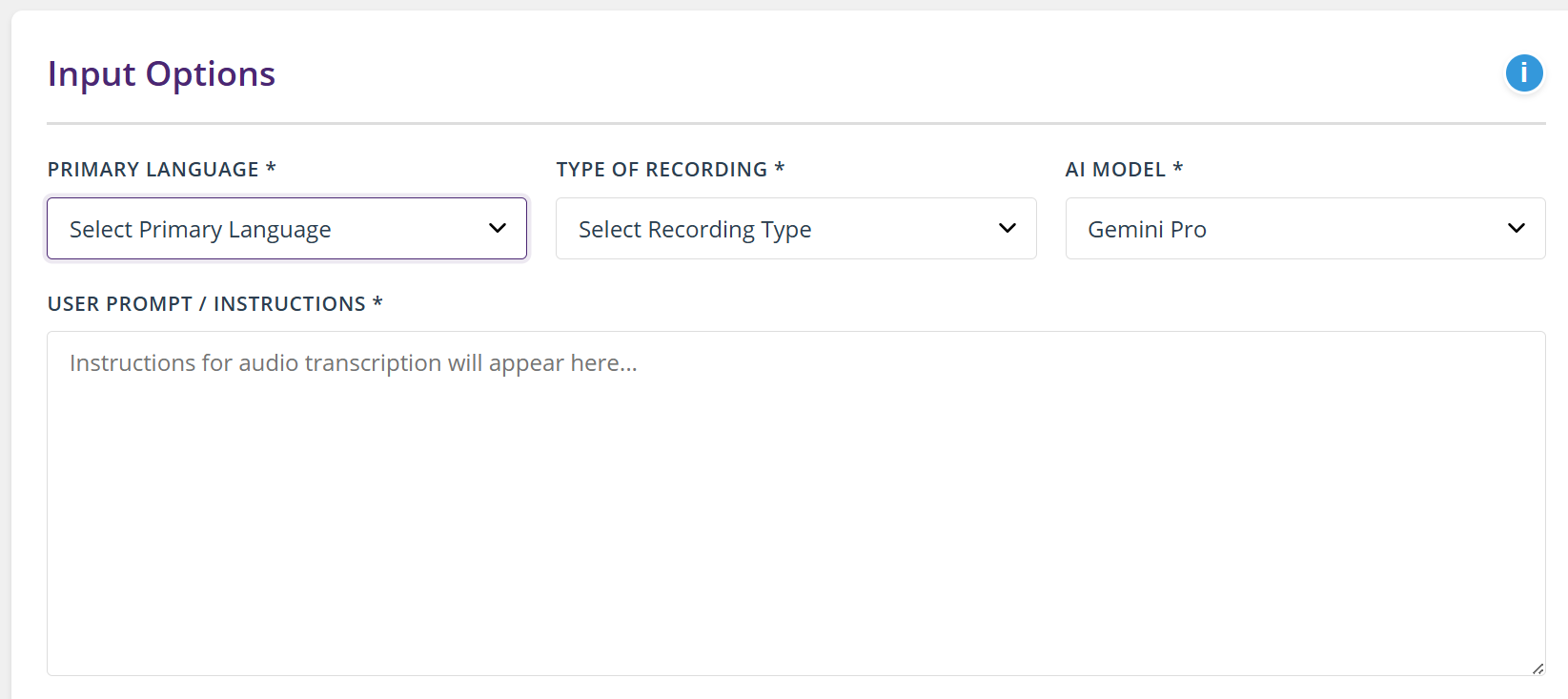
Figure 3: Input dropdowns — Language, Recording Type, AI Model.
Once you select a language and recording type, the User Prompt / Instructions text area auto-populates with a contextual prompt. This prompt tells the AI exactly how to transcribe — speaker labeling, timestamps, formatting rules, and quality notes.
You can edit this prompt to add context specific to your recording. For example:
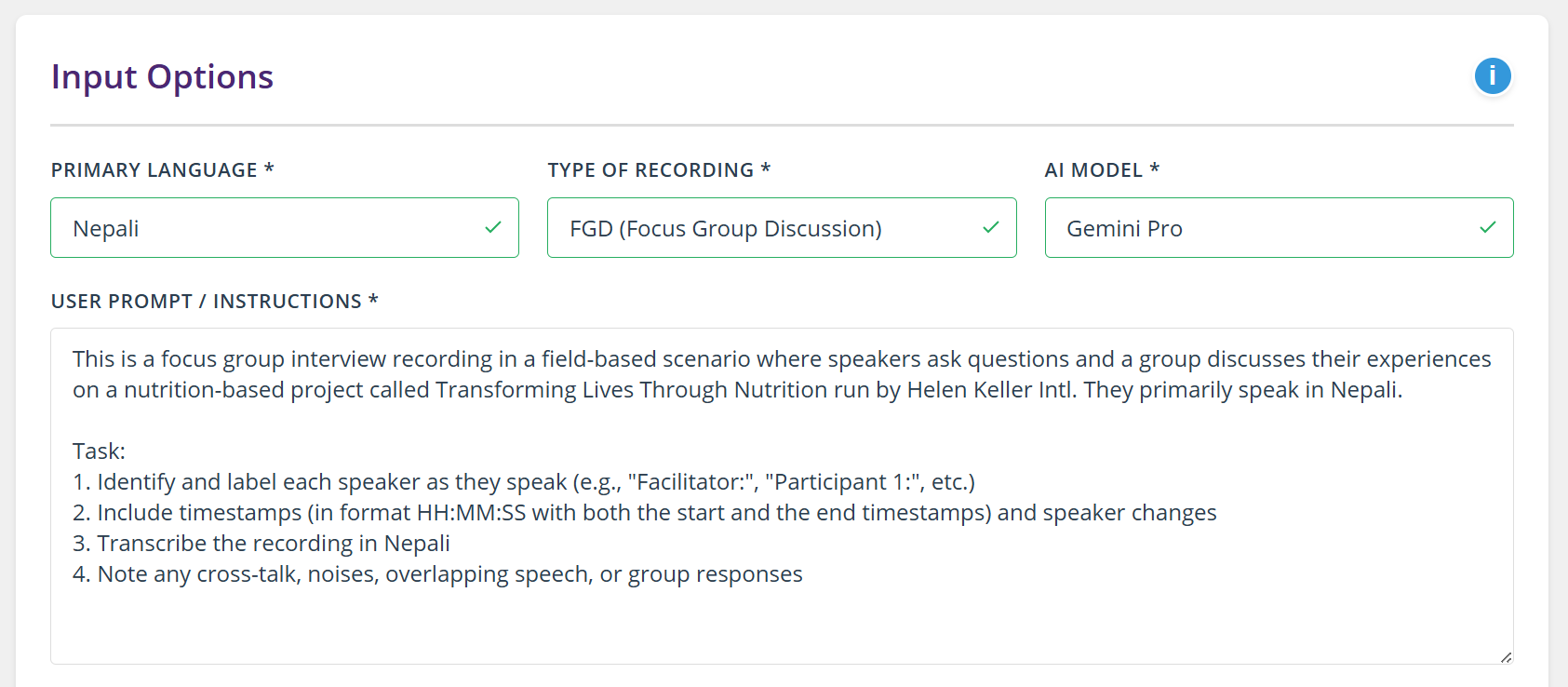
Figure 4: Auto-generated prompt for Nepali FGD.
Drag and drop your audio file into the upload zone, or click to browse. The tool supports:
| Format | Extension | Notes |
|---|---|---|
| MP3 | .mp3 | Most common format — recommended |
| WAV | .wav | Uncompressed, larger file size |
| M4A | .m4a | Apple/iPhone recordings |
| MP4 | .mp4 | Video files (audio track extracted) |
| WebM | .webm | Browser-based recordings |
| OGG / Opus | .ogg, .opus | Open-source formats |
| FLAC | .flac | Lossless audio |
Maximum file size: 500 MB. Files over 100 MB will display a warning but will still process.

Figure 5: File preview after upload — validated and ready.
Once all fields are valid, the Transcribe button activates. Click it to start processing. You will see:
Processing time depends on file size and the effective model selected by policy. A 30-minute FGD recording typically takes 2–5 minutes with Gemini Pro.
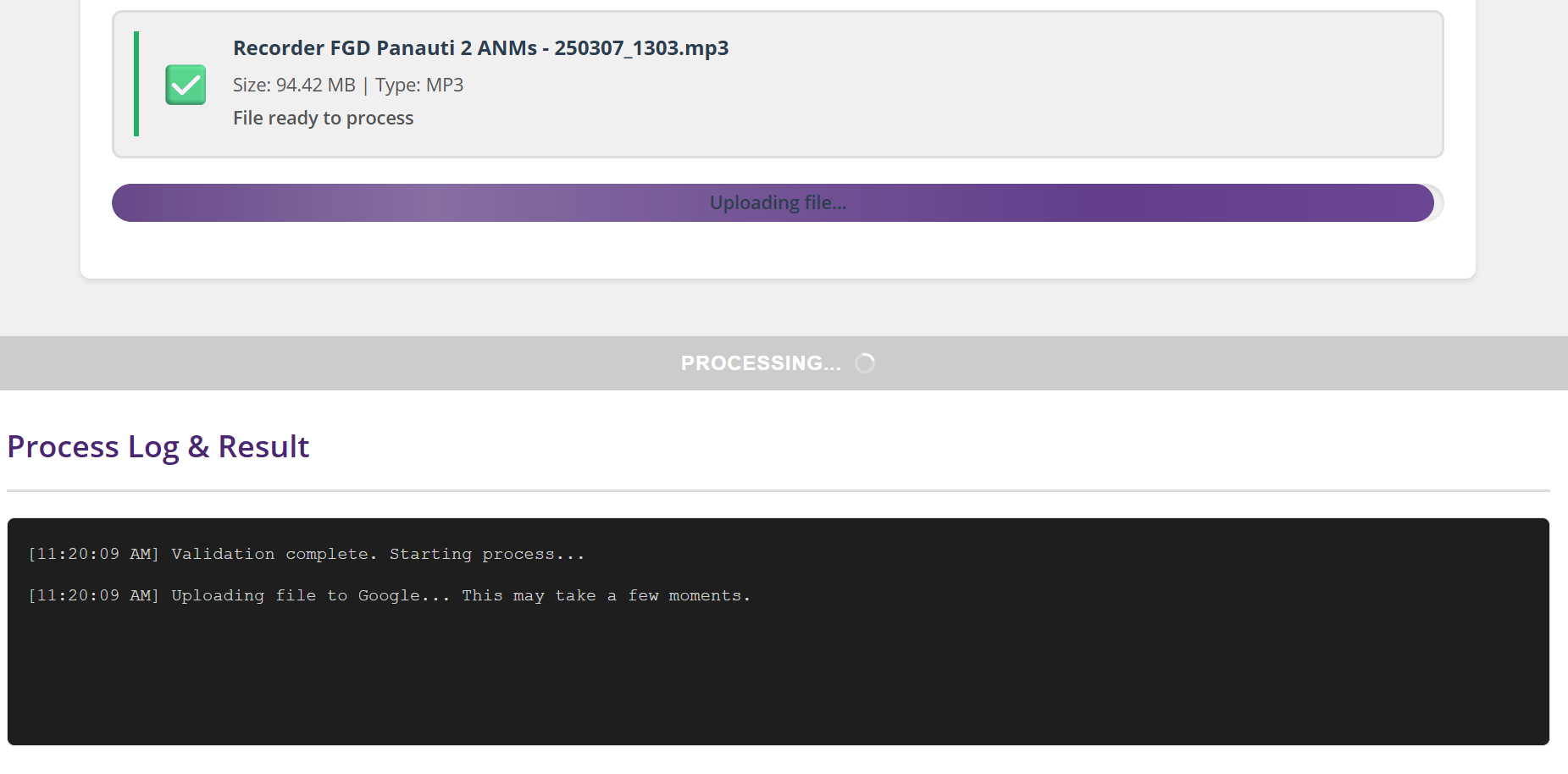
Figure 6a: Upload progress bar and Processing button.
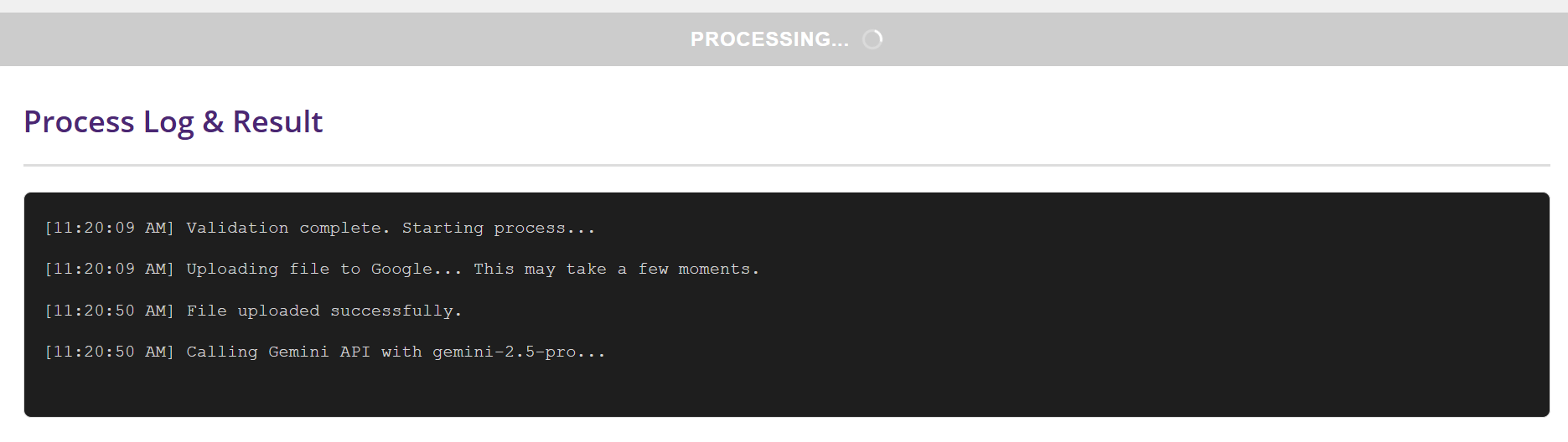
Figure 6b: Process Log — file uploaded, calling Gemini API.
After processing completes, the results area appears with:
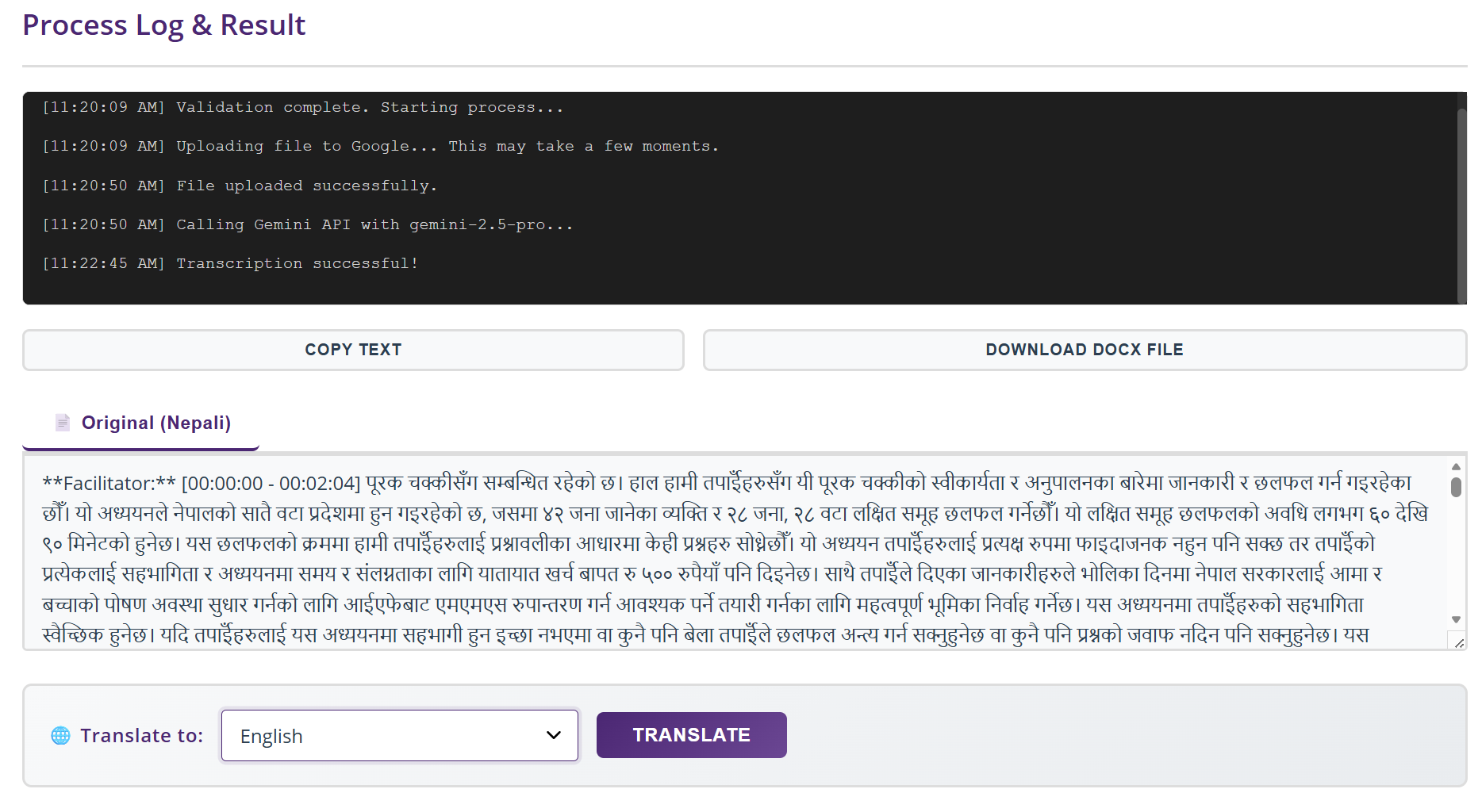
Figure 7: Transcription result — Original (Nepali) with action buttons and Translate controls.
After transcription, a translation control bar appears below the results. To translate:
You can translate to multiple languages — each translation creates a new tab. Previously completed translations are cached so you don't need to re-process them.
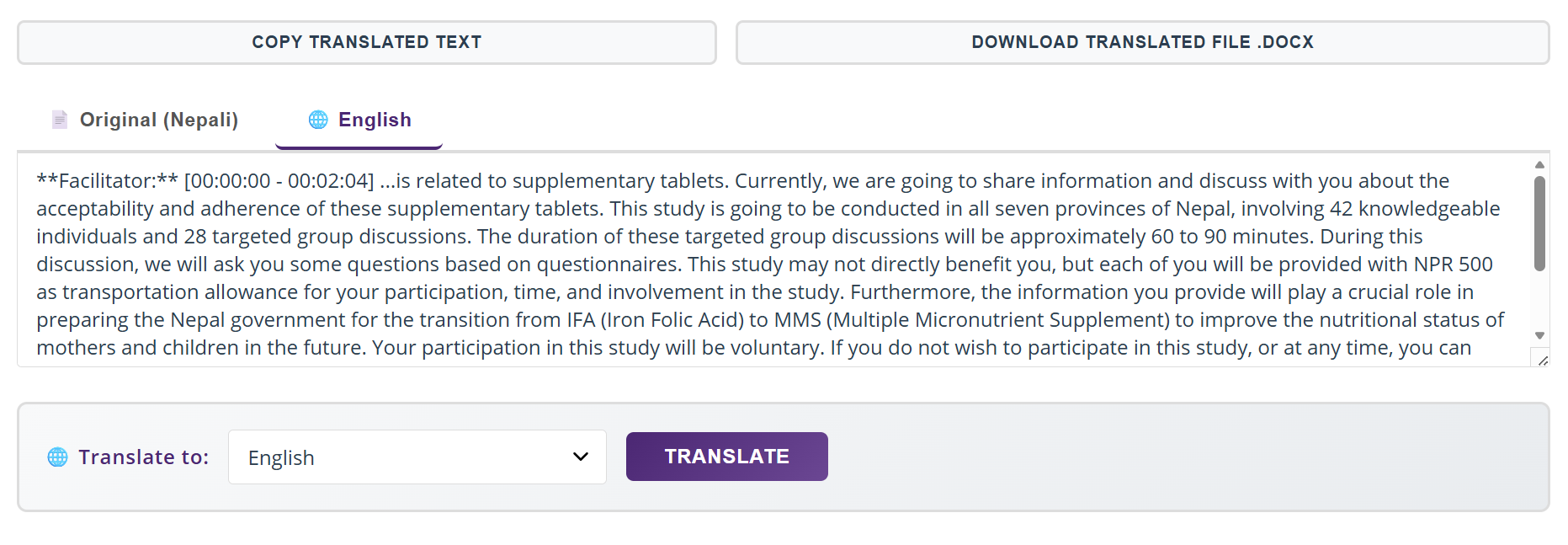
Figure 8: Translation result — English tab active with translated text.
Use this service when you already have a text document (report, transcript, field notes) and need it translated from one language to another — without any audio processing.
Click the "Document Translation Beta" button in the mode switcher bar at the top. The form fields will change to show document-specific options.
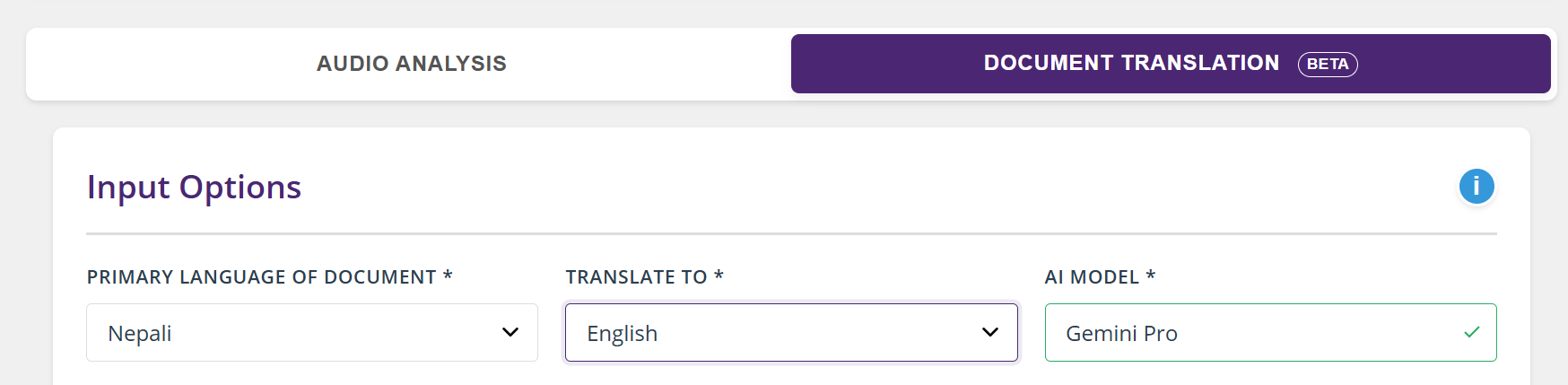
Figure 9: Document Translation mode — source and target language selection.
Select the current language of your document and the language you want it translated into:
The system prevents you from selecting the same language for both, and automatically updates the prompt.
The upload zone now accepts document formats instead of audio:
| Format | Extension | Notes |
|---|---|---|
| Word Document | .docx | Best supported — formatting is partially preserved |
| Text extracted; images/charts are not translated | ||
| Plain Text | .txt | Full text translated; no formatting to preserve |
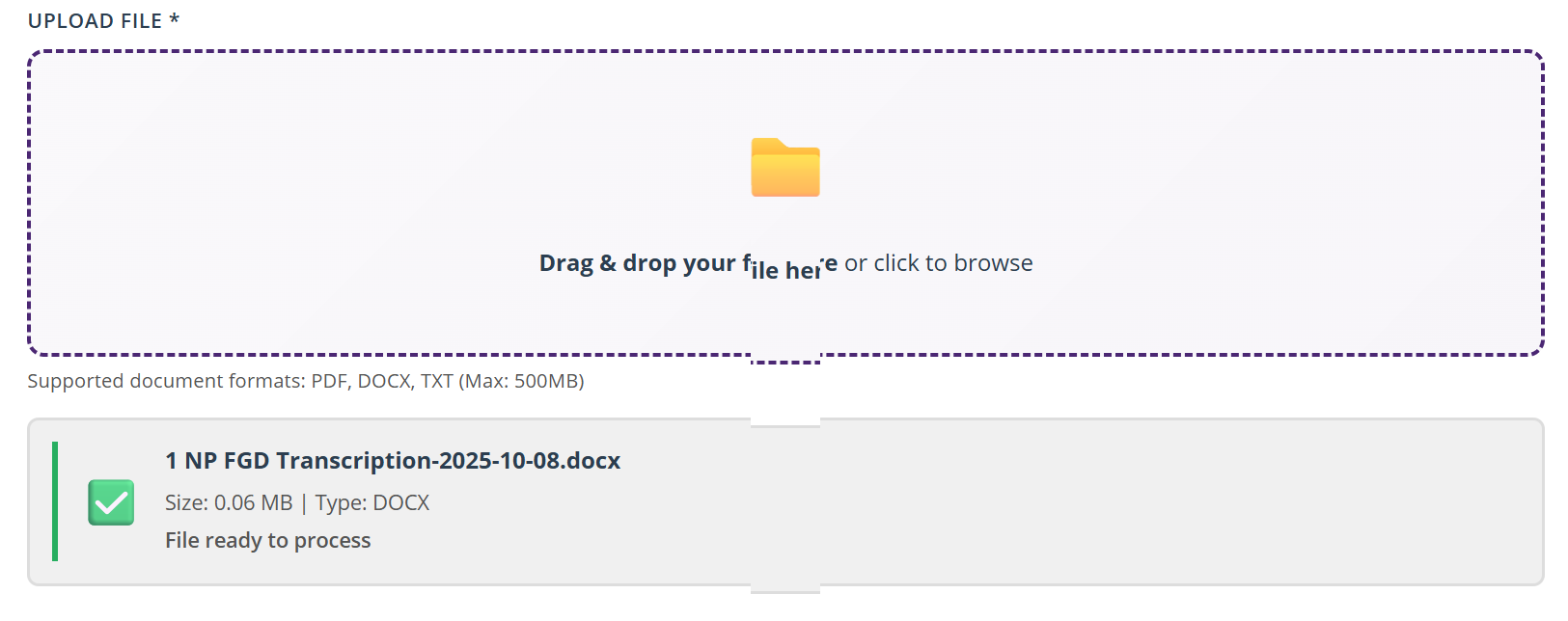
Figure 10: DOCX file uploaded and validated for translation.
The submit button now reads "Translate Document". Click it to start. For DOCX files, you'll see a multi-step process in the log:
A translated .docx file will automatically download when processing completes.
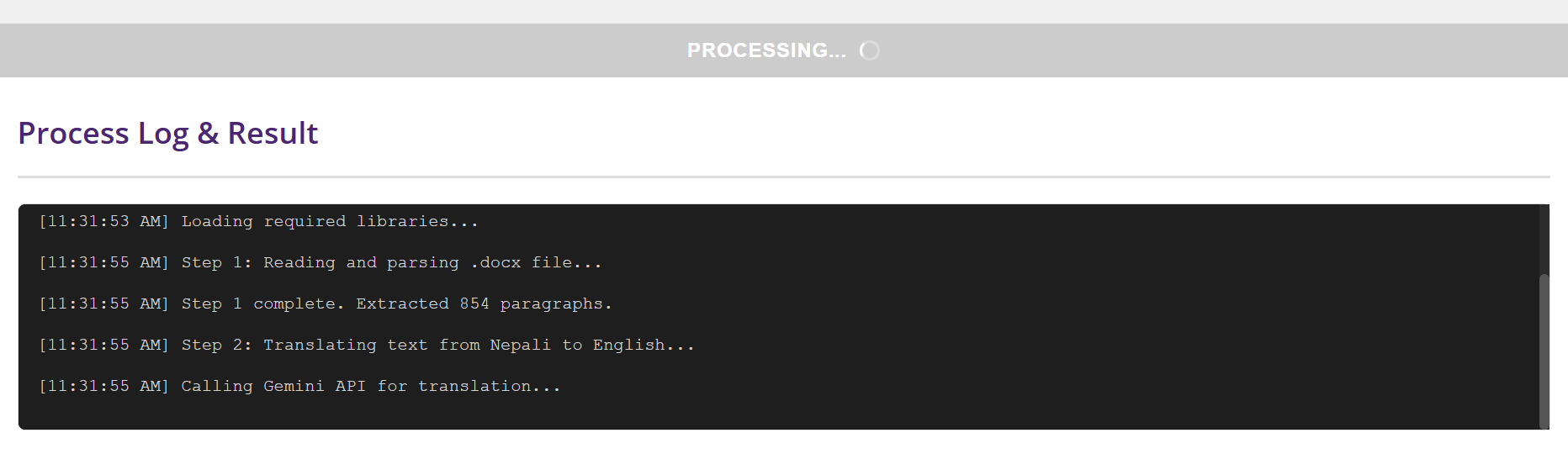
Figure 11: Document translation Process Log — parsing, extracting, translating.
After translation completes:
Note: The post-transcription translation controls (Translate to dropdown) do not appear in Document Translation mode since the translation is already performed.
The toolbox uses Gemini models only, with automatic model selection and policy-based overrides to balance quality, speed, and cost.
| Model | Best For | Strengths | Limitations |
|---|---|---|---|
| Gemini Pro | FGDs, multi-speaker, long recordings, document translation | Highest accuracy, best speaker identification, handles complex audio and large files | Slightly slower than Flash |
| Gemini Flash | KIIs, clean recordings, quick turnaround | Fast processing, good for straightforward 1-on-1 interviews | May struggle with multiple overlapping speakers |
The following languages are currently supported. This list may expand in the future.
| Language | Audio Transcription | Document Translation (Source) | Document Translation (Target) |
|---|---|---|---|
| Bangla | ✔ | ✔ | ✔ |
| English | — | ✔ | ✔ |
| French | ✔ | ✔ | ✔ |
| Hausa | ✔ | ✔ | ✔ |
| Igbo | ✔ | ✔ | ✔ |
| Khmer | ✔ | ✔ | ✔ |
| Kiswahili | ✔ | ✔ | ✔ |
| Nepali | ✔ | ✔ | ✔ |
| Spanish | — | ✔ | ✔ |
| Tagalog | ✔ | ✔ | ✔ |
| Wolof | ✔ | ✔ | ✔ |
| Yoruba | ✔ | ✔ | ✔ |
| Scenario | Recommended Model | Why |
|---|---|---|
| FGD with 6+ participants, noisy environment | Gemini Pro | Best at differentiating multiple speakers and handling noise |
| Clean 1-on-1 KII, under 30 min | Gemini Flash | Faster processing, sufficient quality for clear dual-speaker audio |
| Translating a 20-page DOCX report | Gemini Pro | Better context retention for long documents |
| Quick translation of a short text file | Gemini Flash | Faster, sufficient for short content |
We believe in transparency. Here are the current limitations of the AI Toolbox:
| Limitation | Details | Workaround |
|---|---|---|
| Policy-based model override | For high-thinking runs, the system may force Gemini Pro to maintain compatibility and output quality. | Review the Process Log to confirm the effective model used for each run. |
| Internet required | The tool requires an active internet connection for AI processing. All computation happens in the cloud — nothing runs locally. | Ensure a stable connection, especially for large file uploads. Avoid processing over mobile hotspots if possible. |
| Maximum output length | AI models have a maximum output of ~8,192 tokens per request. Very long recordings may produce truncated results. | For recordings over ~90 minutes, consider splitting the audio file before uploading. |
| Speaker identification accuracy | The AI uses voice characteristics to identify speakers but is not 100% accurate, especially with similar-sounding voices. | Review and correct speaker labels manually. Adding speaker names in the prompt helps significantly. |
| Document formatting (Beta) | DOCX translation partially preserves formatting (paragraphs, text). Complex layouts (tables, images, headers/footers, charts) are not preserved. | For complex documents, consider translating section by section or reformatting after translation. |
| PDF image-based content | Scanned PDFs (images of text) cannot be processed — only PDFs with selectable/extractable text work. | Use OCR software (e.g., Adobe Acrobat) to convert scanned PDFs to text-based PDFs first. |
| No offline mode | The tool cannot function without internet. There is no queuing or offline processing. | Plan your processing when you have reliable connectivity. |
| Browser compatibility | The tool uses ES modules. Very old browsers (Internet Explorer, older mobile browsers) are not supported. | Use the latest version of Chrome, Edge, Firefox, or Safari. |
| Single file per session | You can only process one file at a time. There is no batch upload feature. | Process files sequentially, downloading each result before starting the next. |
| AI accuracy is not 100% | All AI-generated transcriptions and translations should be treated as drafts. Errors in transcription (especially with low-quality audio, heavy accents, or rare dialects) and translation (nuances, idioms) are expected. | Always review and verify AI output against the source material before using it in reports or publications. |
| Problem | Likely Cause | Solution |
|---|---|---|
| Buttons not responding | JavaScript failed to load (CDN issue or network block) | Hard refresh: Ctrl+Shift+R (Windows) or Cmd+Shift+R (Mac). Try a different browser or incognito mode. |
| "File too large" error | File exceeds the 500 MB limit | Compress the audio using a tool like Audacity (free) or convert to MP3 format. |
| Upload stalls or times out | Slow or unstable internet connection | Try again on a stronger connection. For files over 100 MB, wired connections are recommended. |
| Transcription is mostly "[inaudible]" | Very poor audio quality | Try Gemini Pro (more robust with noisy audio). Mention known audio issues in the prompt. Consider re-recording if possible. |
| Translation tab doesn't appear | Translation API call failed | Check the Process Log for error messages. Ensure the transcription completed successfully. Try again. |
| "Download Docx" button not working | The document generation library failed to load from CDN | Check your internet connection. Use "Copy Text" as a fallback and paste into Word or Google Docs. |
| Styles look broken | Cached old CSS | Hard refresh: Ctrl+Shift+R. Or clear browser cache for the site. |
Audio files are uploaded to Google's servers for processing and are subject to Google's data handling policies. Files are uploaded temporarily for processing and are not permanently stored by the tool itself. Check Helen Keller's data governance policy before processing sensitive or personally identifiable recordings.
The interface is responsive and works on mobile devices, but for the best experience (especially with large files), use your Helen Keller laptop or desktop with Chrome or Edge.
The Gemini AI models support many languages beyond the ones in the dropdown. You can select the closest available language and manually edit the prompt to specify the actual language. Results may vary for less common languages. If your country office regularly needs a language not listed, email AI@hki.org and we can add it to the dropdown.
Email AI@hki.org or reach out to Ekendra or Ric directly. Include the browser you used, the file type, and any error messages from the Process Log — a screenshot of the log helps a lot.
The processing will be interrupted and you will lose the in-progress result. The tool cannot resume interrupted sessions. You will need to re-upload and re-process the file.
The result text area is currently read-only. To edit, download the .docx file and edit in Microsoft Word or Google Docs, or copy the text and paste it into your preferred editor.
The feature works reliably for text-based translation but has limited formatting preservation. We are actively improving it. Complex document layouts (tables, charts, multi-column) may not translate cleanly.
A summary you can print or screenshot for quick reference:
| Audio Transcription Workflow | |
|---|---|
| 1. | Select Language → Recording Type → AI Model |
| 2. | Review and customize the auto-generated prompt |
| 3. | Upload audio file (MP3 recommended, max 500 MB) |
| 4. | Click Transcribe and wait for processing |
| 5. | Review result → Download .docx → Then translate if needed |
| Document Translation Workflow | |
|---|---|
| 1. | Switch to Document Translation mode |
| 2. | Set source language → target language |
| 3. | Upload document (DOCX recommended) |
| 4. | Click Translate Document |
| 5. | Translated .docx auto-downloads + view in results area |